
This is a table to summarize the different scenarios
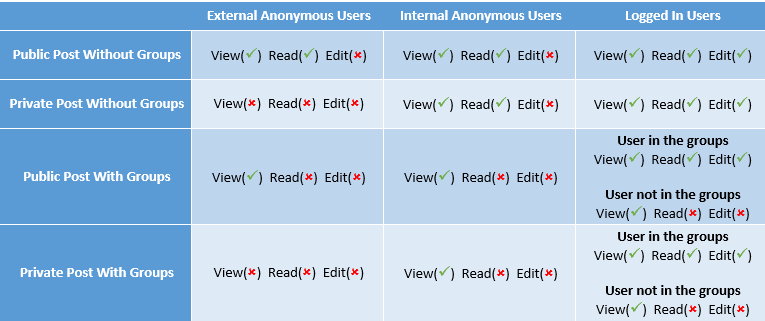
Definitions
Users Type:
External Anonymous Users: anonymous users come from outside company network
Internal Anonymous Users: anonymous users come from inside company network
Logged In Users: users already logged into the help system with their windows account
Access Rights Level:
View: can see the post title
Read: can read the post content
Edit: can edit the post
Notes
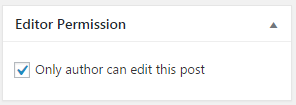
- The “Only author can edit this post” option has the highest priority. That means if you select this option, only the original post author and administrator can edit this post. Please note that the default value for this option is “YES”. If you want other editors to have rights to edit the post, please remember to uncheck this option.
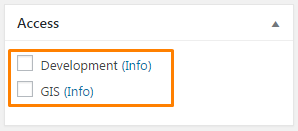
- Groups is a list under the Access tab. Depending on what user roles you have will affect what groups you have access too. If you do not select any groups when you publish a post, it means this post is without any groups. If you selected some groups, it means this post will now belong to these groups.
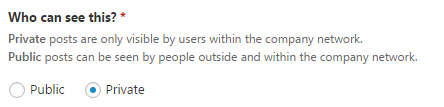
- Public / Private is an option to control if an external or internal visitor has access to the post. The default value for this option is “Private”. If you want to show your post to an external user (like a client), you should select “Public” option, and do not select any groups.
- Groups are controlled by our development team. For now all the groups have a default policy giving only group members the ability to read and edit the group posts. Please contact our development team if you would like a specific group policy. Like all users can read the group posts but only group members can edit the group posts or maybe you need to add a new user group.