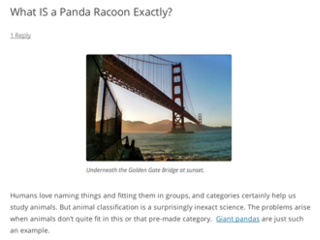
This is a brief instruction, if you want to know more details, please follow the link below:
https://codex.wordpress.org/Inserting_Images_into_Posts_and_Pages
In order to add an image to your post, you must first insert your cursor in the place in the text where you want the image to appear. Once you’ve placed your cursor on the line where you want your image to appear, click Add Media button.
In the Upload Files tab, you can upload new images here. There are two ways to upload images, you can click Select Files button then select images from your local disk, and you also can Drag and Drop your local images to this window.
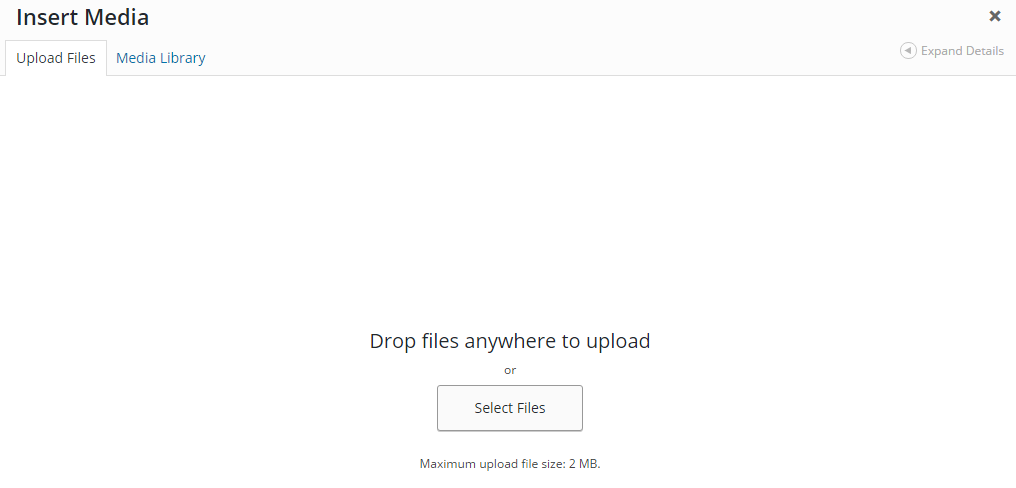
Notice: There is a maximum upload file size limit, it is controlled by admin, and default value is 2MB. We set this limit because if the image too large it will affect the performance of the whole site, and an online image really do not need such big size. So I highly recommend to keep your image size under 800KB, it is very easy to resize your image by using some image tools like Paint or Photoshop. Here is a simple tutorial:
http://www.wikihow.com/Resize-an-Image-in-Microsoft-Paint
In the Media Library tab, you can pick up existing images, press on Ctrl button to multi select or unselect images.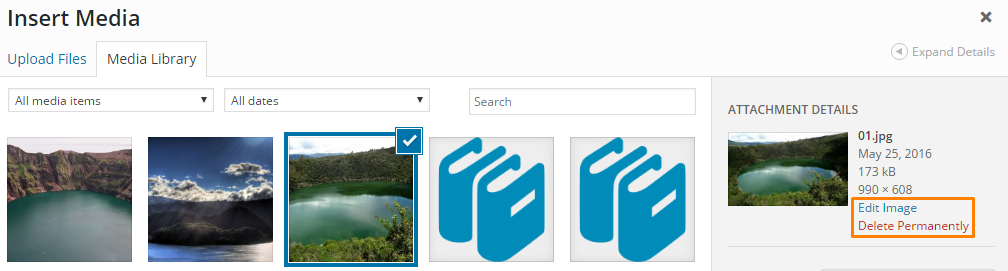
Before you insert image, if you want, clicking the Edit Image button launches the image editor screen, giving you access to several useful image editing controls, the edits you make to your image are non-destructive and you can restore the image to its original (uploaded) specifications at any time. For more details, please follow the link below:
https://codex.wordpress.org/Edit_Media
The Attachment Display Settings pane controls how the image is displayed when viewed on the site. You have options to set how you would like the image aligned on the page (in relation to the text and margins) and what the link behavior of the image will be, In addition you can set what size image you would like to display on your page.
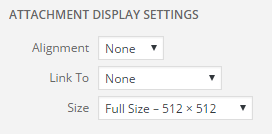 Notice: Our design make the image can resize itself to fit your screen, so you can just use the Full Size and do not worry about if your image too wide to go out of the screen.
Although you can aligns the image on the left or right of text, and let the text warps around the image like example below,
But I do not recommend this layout. That’s because our site is responsive, so user maybe visit our site by using any devices with different screen size. So even you use align left or right designed a very good layout in your desktop, it may be a mess on user’s mobile phone. So I highly recommend use align center for your image, just make all your image in a new line without any text around it, then it will be working good on any screen.