Before you add or edit a employee profiles, you should prepare employee’s photos first. Please note that the photo dimensions must be in a square aspect ratio and not too large, so you may need resize employee’s photos first, 300 * 300 is recommended size. It is very easy to resize your image by using some image tools like Paint or Photoshop. Here is a simple tutorial:
http://www.wikihow.com/Resize-an-Image-in-Microsoft-Paint
Step 1
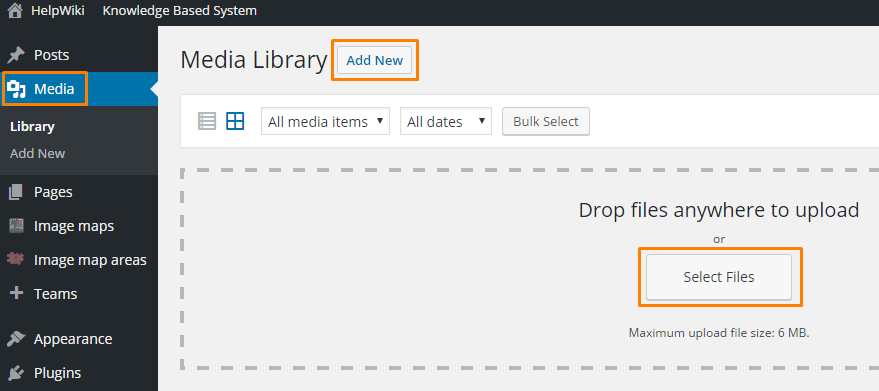
After your photos ready, you can choose upload them to media library together now, or you can upload photo to each team member later. To upload photos to media library now, login as system admin or team page admin, click Media tab, click Add New button, then click the Select Files button, go to find those resized photos on your local machine, you can press Ctrl button to do a multi select and upload.
Step 2
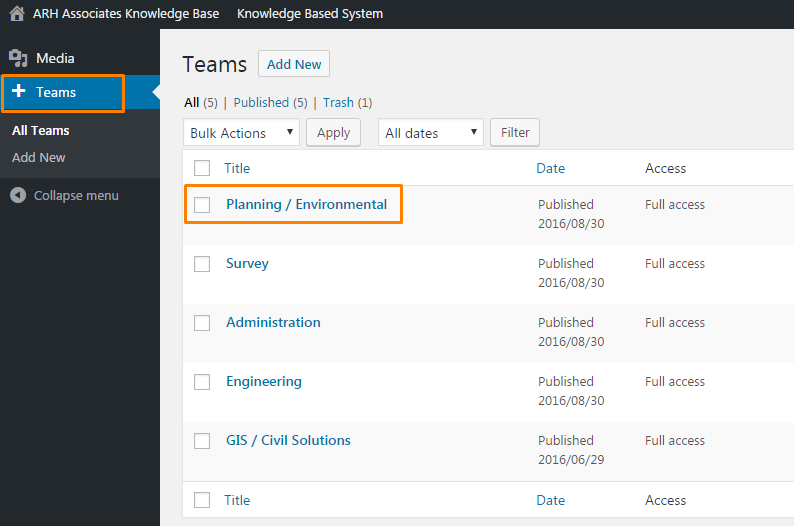
To add or edit employee profiles, click on Team tab, then select one department.
Step 3
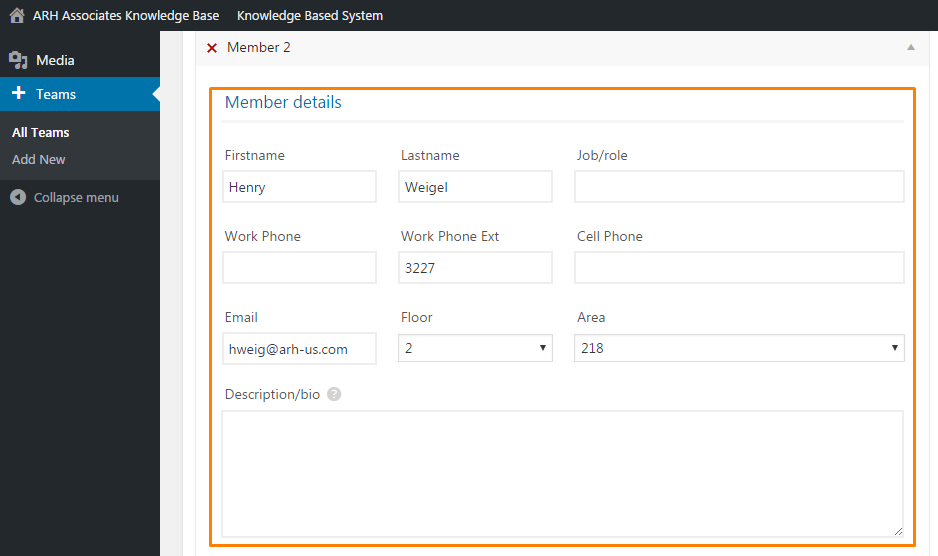
Find the employee you want to edit, edit the employee’s basic information, select the floor and area where the employee sit, please note that, the Floor does not mean the real floor number, it means the sequence of those floor plan images in the team page.
Step 4
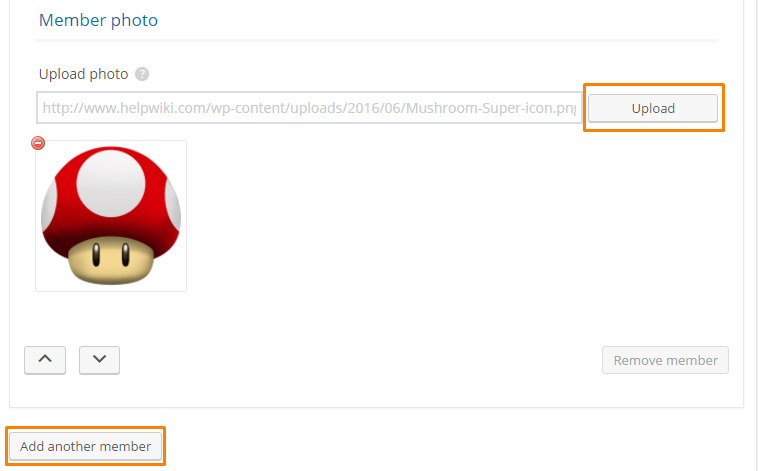
Click on Upload button, pick up the employee photo from media library or upload a new photo for this employee, and you can click Add another member button to add more employees in this department. After you finished, do not forget click Update button in the right side bar.